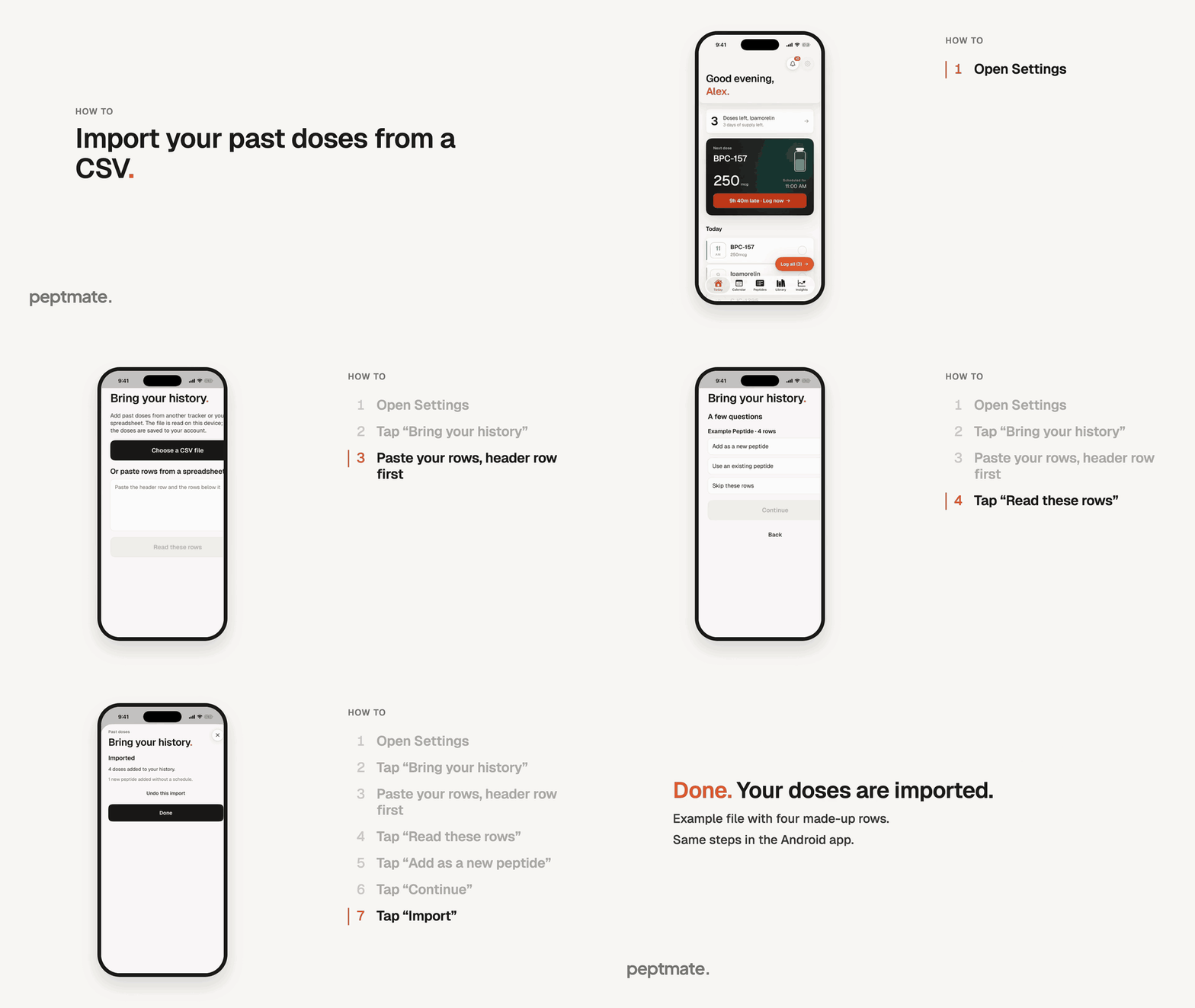
Bring doses from another tracker or a spreadsheet into Peptmate, check the preview, then import.
Same steps in the Android app.
The file in the recording is made up: four rows for an Example Peptide. Use your own file, and check every row in the preview.
Open Settings, the gear at the top right of Today.
Scroll to Export and tap “Bring your history”.
Either tap “Choose a CSV file” and pick your file in Files, or paste the rows from your spreadsheet into the box (header row first) and tap “Read these rows”. The recording pastes the rows.
If Peptmate asks “A few questions”, answer them. For a peptide it has not seen before, tap “Add as a new peptide”, then “Continue”.
Check the preview (nothing is saved yet), then tap “Import”.
Changed your mind? Tap “Undo this import” on the next screen, or later under “Your imports”.
The first row of the file must be column names, with a date, a peptide and an amount. A unit column (mcg or mg) is optional.
The file is read on your phone, and only the doses are saved to your account. Imported doses go into your history only: they do not change your vial or supply count.